Your OneDrive photos,
on the TV.
CloudFrame TV plays the photos already in your Microsoft OneDrive on any Roku: your folders, your albums, an always-on photo frame. You connect OneDrive once in your browser, and the TV never asks for your Microsoft password.
For personal Microsoft accounts, on Roku in the United States.
7 days free, then $24.99 a year (or $3.99 a month), renewing automatically until you
cancel.
Who the OneDrive library works for
Works with
- A personal Microsoft account: an outlook.com, hotmail.com, or live.com address, or any other email you’ve made into a Microsoft account
- The photos in your own OneDrive, in your folders and albums
- Roku in the United States
Not included
- Work or school accounts (OneDrive for Business and SharePoint)
- Videos
- Files other people have shared with you
All your OneDrive photos, on the big screen
Your whole photo library, on every TV you sign in on.
-
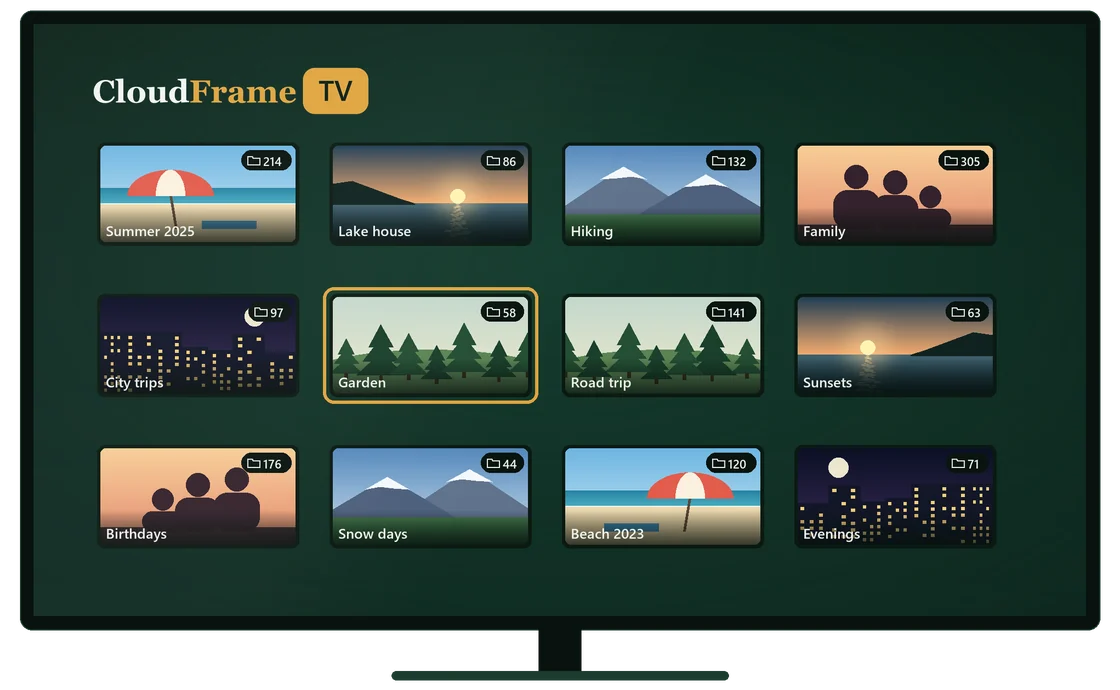
Browse your real folders
Open your OneDrive folders and albums with the remote and pick exactly what plays. Photos are sent sized for your TV, up to full HD, and a tall portrait can fill the width of the screen.

-
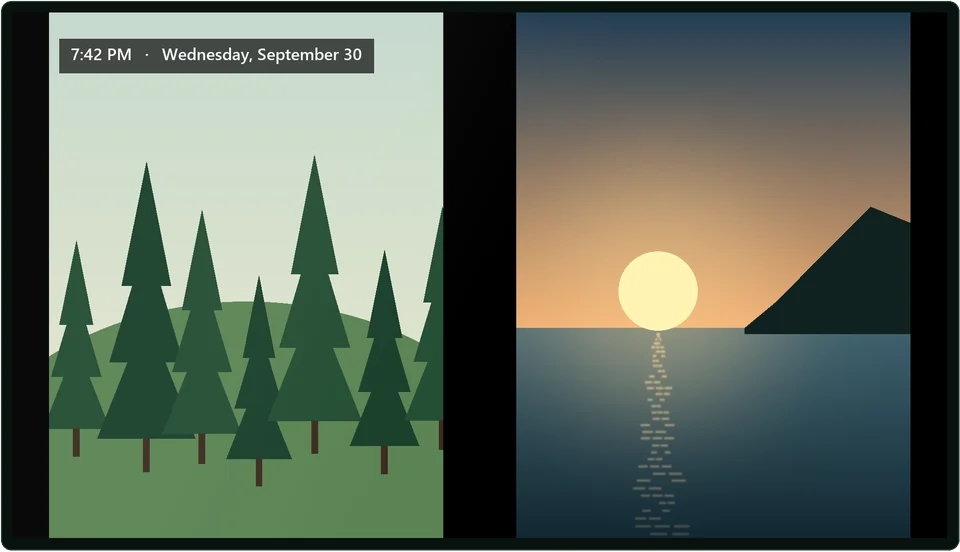
Ambient: an always-on photo frame
Choose Ambient on the TV’s home screen and it shuffles your whole library like a picture frame, pairing tall portraits side by side. Add CloudFrame Ambient, a separate free channel, and it becomes the screensaver for the whole TV.
-
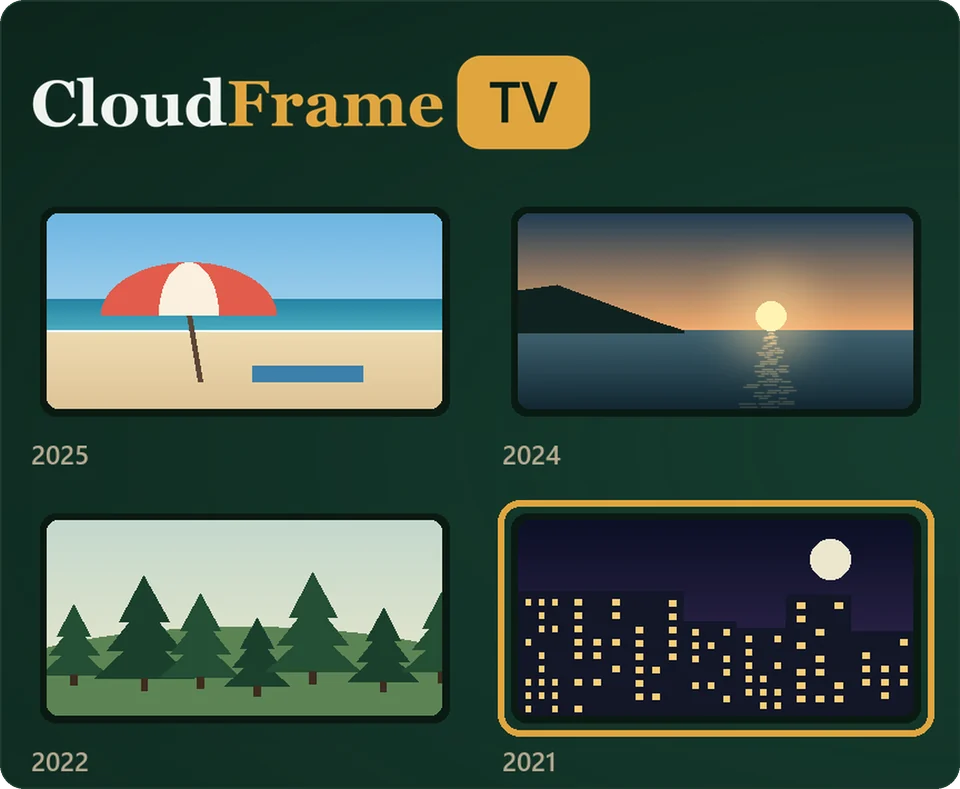
On This Day
Photos taken on today’s date in past years, newest first, each marked with its year. The kind of small resurfacing that makes a shared TV worth glancing at.
Read-only and private. Nothing in your OneDrive is changed, moved, or deleted, we never keep copies, and there are no ads or tracking.
Casting is free. The library is a subscription.
Two different things, and you can use the free one forever without ever creating an account.
-
Cast from your phone — free
Scan a QR code and send a few photos from your phone to the TV. No account, nothing to install, and the photos are deleted automatically when you’re done. Perfect for showing guests a handful of pictures. See how casting works →
-
Your OneDrive library — subscription
Your whole OneDrive photo collection, always available on every TV you sign in on: folders, albums, On This Day, and Ambient. This is the part a subscription covers, and it starts with a free trial.
Four steps, once
Set it up in a few minutes from your phone or computer, then it’s just there.
-
Add CloudFrame TV to your Roku
Add it free from the Roku Channel Store, available on Roku in the United States. The channel itself is free, whether or not you ever connect OneDrive.
-
Start your free trial
Sign in here with Microsoft, grant read-only access to your photos, and choose a plan, all in your own browser. This is the only step that touches your Microsoft account, and it never happens on the TV.
-
Sign in on your TV
Open CloudFrame TV on your Roku, choose Sign in, and enter the main email address on the Microsoft account you used in step 2. Type the one-time code we send you and you’re in. Sign in on as many TVs as you like.
-
Your library plays
Browse your folders and albums with the remote, or let the photo frame run on its own. Your library stays available on every signed-in TV until you disconnect it.
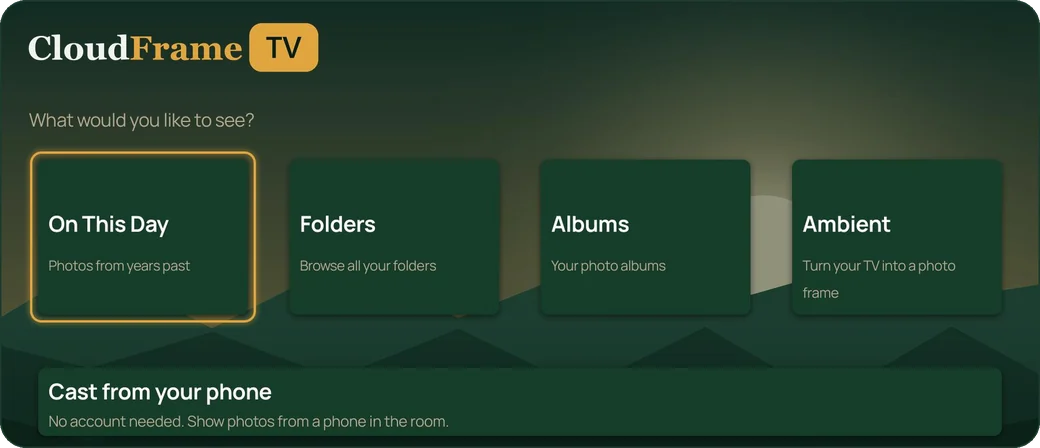
Your TV’s home screen once you’re signed in.
Try the library free for 7 days
Connect your own OneDrive and see your folders on your own TV before you pay anything.
After the trial
- Annual Best value $24.99 a year
- Monthly $3.99 a month
- You pick a plan and add a payment method to start, but nothing is charged for 7 days. Our payment provider emails you before the trial ends.
- Cancel before then and you’re never charged, or cancel any time later from your account page.
After the trial it renews automatically at $24.99 a year, or $3.99 a month on the monthly plan, until you cancel. Prices in USD; taxes are calculated at checkout.
Next: sign in with Microsoft, choose annual or monthly, then add a card on our payment provider’s secure page. Questions first? Read the FAQ.